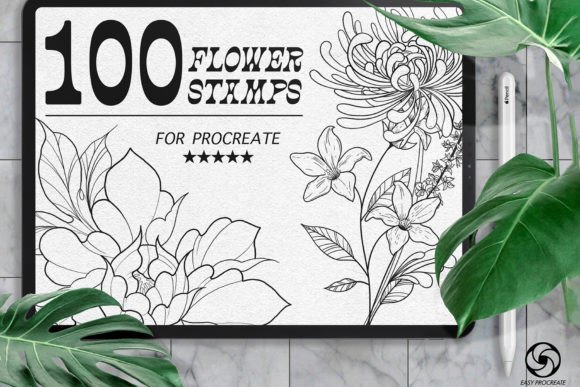
Maximizing Your Digital Art with 100 Flower Stamps for Procreate
Digital illustration has evolved rapidly, shifting from simple sketching tools to comprehensive design ecosystems. For artists working on the iPad, efficiency is often just as critical as creativity. This is where specialized assets like 100 Flower Stamps for Procreate become invaluable. These high-resolution botanical stamps are not merely decorative elements; they are functional tools designed to streamline the workflow for graphic drawing and tattoo design. However, many users approach these digital assets with misconceptions that limit their potential. Understanding how to properly integrate, customize, and utilize these stamps can transform a tedious design process into a fluid, creative experience.
Understanding the Versatility Beyond Simple Decoration
A common misunderstanding among beginners is viewing flower stamps as static clipart. In reality, this set offers a wide variety of flowers drawn in diverse styles, making them adaptable for numerous professional needs. Whether you are creating intricate tattoo flash sheets, designing wedding invitations, or adding organic textures to brand identity projects, the utility extends far beyond basic embellishment. The key lies in recognizing that these are building blocks, not finished products. By treating them as foundational layers, you can manipulate opacity, apply custom gradients, and adjust colors to match specific project requirements. This flexibility allows for unbeatable results that look hand-drawn rather than copied.
Mistake 1: Ignoring Resolution and Scalability Limits
One of the most frequent errors creators make is assuming all digital stamps are created equal regarding resolution. While 100 Flower Stamps for Procreate are marketed as high-resolution, users often stretch these assets beyond their intended limits without checking the pixel density. When a stamp is scaled up excessively for large-format prints, such as posters or banners, it can lose clarity, resulting in pixelation or blurry edges. This negatively impacts the perceived quality of your work, especially in professional contexts where clients expect crisp, vector-like precision.
To avoid this, always test the stamp at the final output size before committing to a design. If you need to enlarge a floral element significantly, consider using it as a texture overlay rather than a primary line art component. Alternatively, use the stamp as a reference to trace over with Procreate’s native brushes, ensuring your final lines remain sharp regardless of scale. This approach maintains the aesthetic appeal while safeguarding technical quality.
Mistake 2: Overlooking Color Harmony and Customization
Another prevalent issue is using the stamps in their default black or grayscale state without adjusting them to fit the overall color palette of the artwork. Many users drop a stamp onto the canvas and leave it there, which can create visual dissonance. The true power of these botanical stamps lies in their editability. Failing to change the color, opacity, or blending mode means missing out on the depth and integration that makes digital art feel cohesive.
A better approach involves experimenting with layer properties. Try setting the stamp layer to "Multiply" for a natural ink bleed effect or "Overlay" to blend it seamlessly with textured backgrounds. Apply your own gradients to give the flowers dimension and life. For tattoo designers, this step is crucial; a flat black flower may look generic, but a flower with subtle gray washes and varied opacity mimics the look of traditional needle work, adding authenticity to the design. Taking the extra minute to customize each element ensures your creation remains unique rather than recognizable as a stock asset.
Mistake 3: Neglecting Proper Installation and File Management
Technical hurdles often frustrate users before they even begin creating. A significant oversight occurs during the installation phase. After purchasing, users receive a download link for the file. It is essential to open this downloaded file directly on your iPad via Procreate. The brushset is designed to automatically install and become available for use upon opening. However, if users attempt to import the file through iTunes, cloud storage previews, or third-party apps without proper association, the installation may fail or result in corrupted brushes.
If you encounter problems with the installation, do not panic. Check that your Procreate app is updated to the latest version, as older versions may not support newer brush formats. Additionally, ensure the file was fully downloaded before attempting to open it. If issues persist, reaching out to the creator for support is the best course of action. Remember, these brushes only work on Procreate; trying to use them in other software like Photoshop or Clip Studio Paint will not yield results, leading to unnecessary confusion and wasted time.
Strategic Application for Tattoo and Graphic Design
For tattoo artists, speed and consistency are vital. Using Procreate stamps for graphic drawing allows for rapid prototyping of sleeve layouts or flash sheets. Instead of drawing every petal from scratch, you can arrange multiple flower stamps to compose a balanced bouquet, then refine the connections with freehand lines. This hybrid method saves hours of labor while maintaining artistic integrity. Similarly, graphic designers can use these stamps to create repeating patterns for textiles or packaging. By rotating and varying the opacity of individual flowers, you can generate complex, organic patterns that feel hand-crafted yet are produced efficiently.
It is also important to consider composition. Avoid clustering stamps too densely, which can create visual noise. Instead, use negative space to let each floral element breathe. This balance enhances readability and aesthetic appeal, whether the final piece is a small logo or a large mural.
Final Considerations Before You Begin
Before integrating these tools into your workflow, take a moment to evaluate your specific needs. Ask yourself if the style of the flowers matches your brand or artistic voice. Review the included styles to ensure they align with your current projects. If you are a beginner, start by using the stamps as learning aids—study how the petals are shaped and how the lines flow to improve your own freehand drawing skills. For professionals, focus on how these assets can reduce turnaround time without compromising quality.
Always keep backup copies of your customized brushes or saved combinations. If you develop a particular color gradient or opacity setting that works well for your style, save it as a preset. This practice builds a personalized library within the broader toolset, enhancing efficiency over time. If you have any questions about usage or compatibility, do not hesitate to contact the provider. Clear communication ensures you get the most value from your purchase.
In conclusion, 100 Flower Stamps for Procreate offer a powerful solution for artists seeking to enhance their productivity and creative range. By avoiding common pitfalls related to resolution, customization, and installation, you can unlock the full potential of these high-resolution botanical assets. Whether you are designing tattoos, creating marketing materials, or exploring digital painting, these stamps provide a versatile foundation for unique and professional-quality artwork.