Mastering Tracker Procreate Brushes: A Practical Guide to Digital Stamping
Digital illustration has evolved from simple sketching into a complex ecosystem of tools designed to streamline workflow and enhance creativity. Among these tools, stamp brushes have emerged as a favorite for artists who need to populate scenes quickly or add intricate details without repetitive manual drawing. The Tracker Procreate Brushes collection represents a specific approach to this utility, offering a curated set of assets designed for efficiency. However, simply downloading a brush pack does not guarantee professional results. Many users encounter friction not because the tools are flawed, but because they misunderstand how digital stamps function within the Procreate environment.
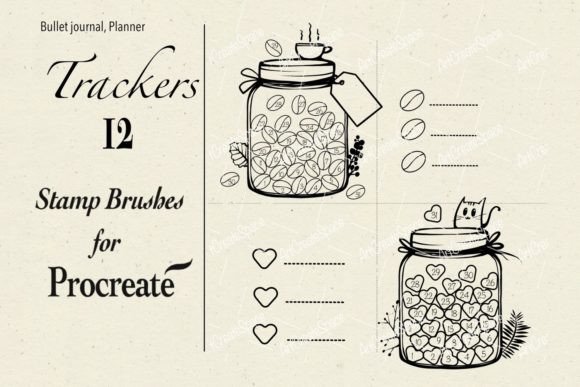
When you purchase this resource, you will receive a set of 12 Procreate stamp brushes in .brushset format, compressed in a Zip file. While this sounds straightforward, the transition from download to masterpiece involves several technical and artistic considerations that are often overlooked by beginners and even some experienced creators. Understanding these nuances is essential for maximizing the value of your purchase and avoiding common pitfalls that can hinder your creative process.
Understanding Compatibility and Technical Requirements
The most frequent source of frustration for new users is compatibility. It is crucial to recognize that these are digital brushes which will only work in the Procreate App for iPad with the Apple Pencil. They will not work in Photoshop, Clip Studio Paint, or any other software applications. This limitation is not a defect but a result of how different software engines handle brush data. Procreate uses a proprietary file structure that allows for deep integration with the iPad’s touch and pressure sensors.
Many artists mistakenly assume that a ".brush" or ".brushset" file is universal. Attempting to import these files into desktop software will result in error messages or unrecognized file types. Before purchasing or downloading, always verify that your primary workflow exists within the Procreate ecosystem. If you are a hybrid artist who switches between iPad and desktop, you must accept that these assets are platform-specific. This realization helps manage expectations and prevents wasted time trying to force incompatible tools to work together.
The Installation Process: Avoiding Import Errors
Once you have confirmed compatibility, the next hurdle is installation. The process is generally seamless, but minor errors can occur if steps are skipped. You will receive the files in a Zip archive. On iOS, tapping the Zip file usually extracts it automatically, revealing the .brushset file inside. However, users sometimes attempt to import the Zip file itself, which Procreate cannot read.
To ensure a smooth setup, follow this precise method:
- Download your .brushset file: Ensure the Zip file is fully extracted. Locate the specific file ending in .brushset.
- Tap the file: In most cases, iOS will recognize the file type and offer to open it in Procreate automatically. This imports the entire set into your brush library instantly.
- Manual Import (if needed): If automatic import fails, open your project in Procreate. Click on the brush icon at the top right corner to open the Brush Library. Tap the plus sign (+) or select "Import" from the menu options, then navigate to your Files app to select the .brushset file.
Failing to extract the Zip file first is a common mistake that leads to confusion. Always double-check that you are interacting with the actual brush set file, not the compressed archive.
Artistic Misconceptions: Stamps Are Not Shortcuts for Skill
Beyond technical setup, there is a significant artistic misunderstanding regarding stamp brushes. Many beginners view tools like Tracker Procreate Brushes as a way to bypass the need for drawing skills. They expect to drop a stamp onto the canvas and have a finished element. This approach often results in flat, disjointed artwork that lacks cohesion.
Stamp brushes are best used as building blocks, not final products. A common error is using the stamp at full opacity and original size repeatedly across a canvas. This creates a patterned, artificial look that viewers can easily detect. To avoid this, treat each stamp as a raw material. Adjust the opacity, change the color hue to match your lighting, and use the transform tool to rotate and scale each instance uniquely. By varying these parameters, you integrate the stamped elements naturally into your composition.
For example, if you are using a foliage stamp, do not simply place identical leaves in a row. Rotate some leaves, shrink others, and lower the opacity of those in the background. This mimics the randomness found in nature and adds depth to your illustration. The brush provides the shape, but you must provide the context and variation.
Optimizing Workflow and Efficiency
The true power of this 12-brush set lies in workflow optimization. Artists often waste hours drawing repetitive elements like textures, patterns, or small decorative icons. By utilizing these pre-made stamps, you reclaim that time for higher-level creative decisions, such as composition and color theory. However, efficiency is lost if you do not organize your brush library.
After importing, consider creating a dedicated folder for your stamp brushes. Mixing them with your standard sketching or inking brushes can clutter your interface and slow down your selection process. Grouping similar tools together ensures that when you need a specific texture or element, it is immediately accessible. This organizational habit is small but significantly impacts long-term productivity.
Evaluating Value and Making Informed Decisions
Before integrating any new tool into your arsenal, it is wise to evaluate its specific utility for your style. The Tracker Procreate Brushes are designed for specific aesthetic outcomes. Review the preview images carefully to ensure the style aligns with your current projects. If your work leans towards hyper-realism, stylized stamps may require significant modification to fit. Conversely, if you create whimsical or graphic illustrations, these tools may integrate seamlessly.
Remember that digital assets are non-refundable in most marketplaces due to their nature. Therefore, doing your due diligence before purchase is critical. Check the resolution of the stamps. High-quality brushes should maintain clarity even when scaled up slightly. If the previews show pixelation at moderate sizes, the tool may not meet professional standards. Since this set includes 12 distinct brushes, assess whether each one offers unique value or if there is redundancy. A diverse set allows for greater creative flexibility.
In conclusion, mastering these tools requires a blend of technical know-how and artistic intention. By respecting the platform limitations, following correct installation procedures, and applying thoughtful customization to each stamp, you can elevate your digital art. Avoid the trap of relying on automation alone; instead, use these brushes to enhance your unique voice and streamline your creative journey.